Leírás
WordPress Backup, Restore, Staging, Cloning & Migration — All in One
WP STAGING is the all-in-one WordPress backup, restore, staging, cloning, and migration plugin, built for professional workflows with 100% unit-tested code, thousands of automated tests, and extensive end-to-end testing across supported PHP versions.
Create a full backup or an exact clone or copy of your website in minutes. Use it to duplicate your site, test plugin and theme updates safely, restore your site when needed, move or migrate WordPress to another server, transfer your site to a new host, or build a staging copy before making changes. WP STAGING also works as a WordPress duplicator, so you do not need a separate duplicator plugin to copy your website.
WP STAGING reliably backs up, clones, and migrates WooCommerce stores too, including orders, products, and customer data.
WP STAGING is developed in Germany and designed for agencies, developers, and businesses that need reliable WordPress backup, recovery, staging, restore, and migration workflows.
WP STAGING | PRO also includes advanced workflows such as Remote Sync, which lets you pull a WordPress site securely from one server to another using an API key, and WP STAGING CLI, which can turn a WP STAGING backup into a local Docker-based development site.
All data stays on your server unless you choose a transfer or remote storage workflow. WP STAGING is designed for speed, reliability, and low-resource environments, including shared hosting.
WP STAGING automatically performs search and replace for links and paths during cloning, backup, restore, and migration workflows.
This staging and backup plugin can clone your website quickly and efficiently, even if it is running on a weak shared hosting server.
WP STAGING FREE – BACKUP & STAGING FEATURES
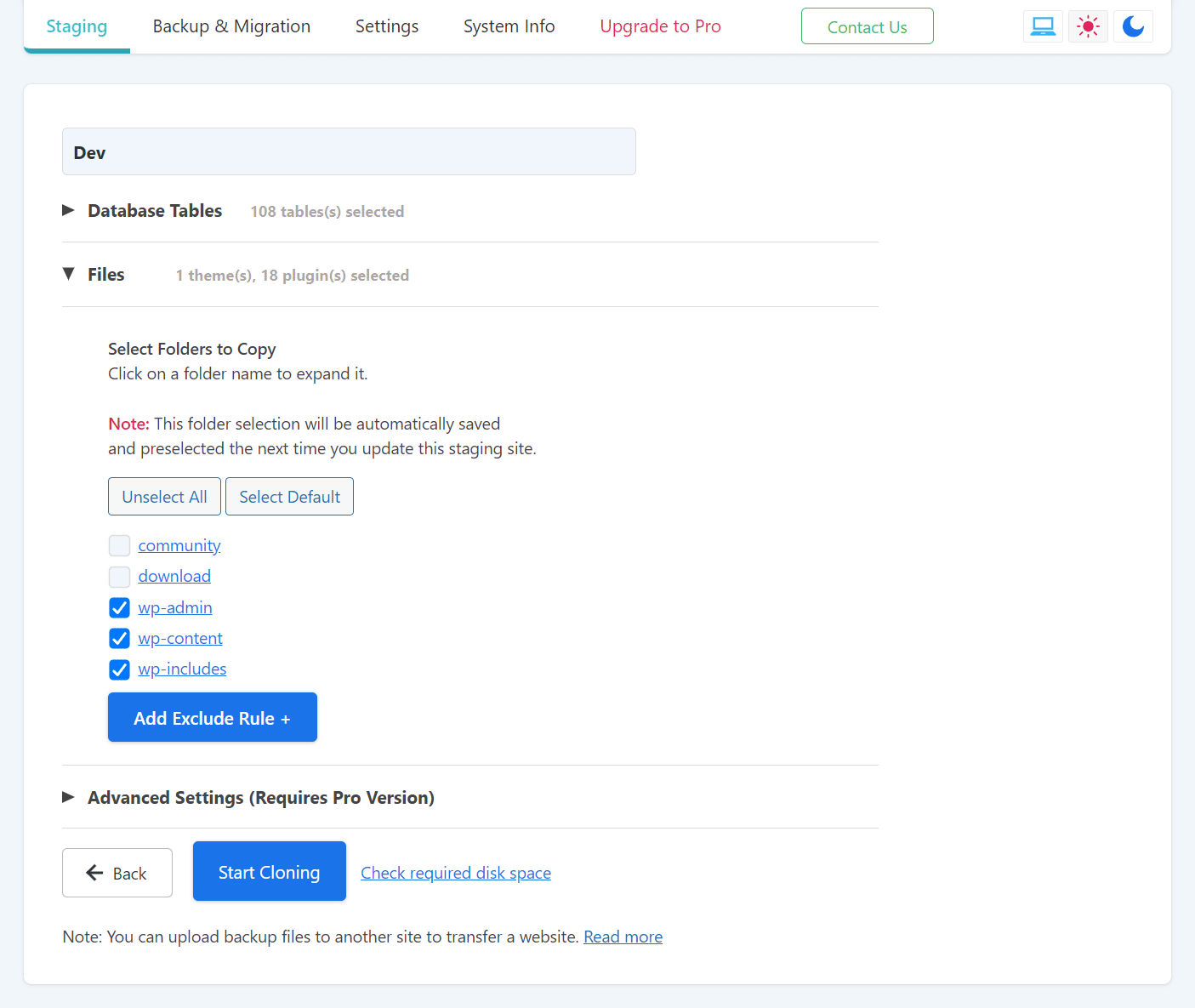
- Clone the entire production site into a subdirectory like example.com/staging-site.
- High-performance backup and cloning, even for websites with very large databases.
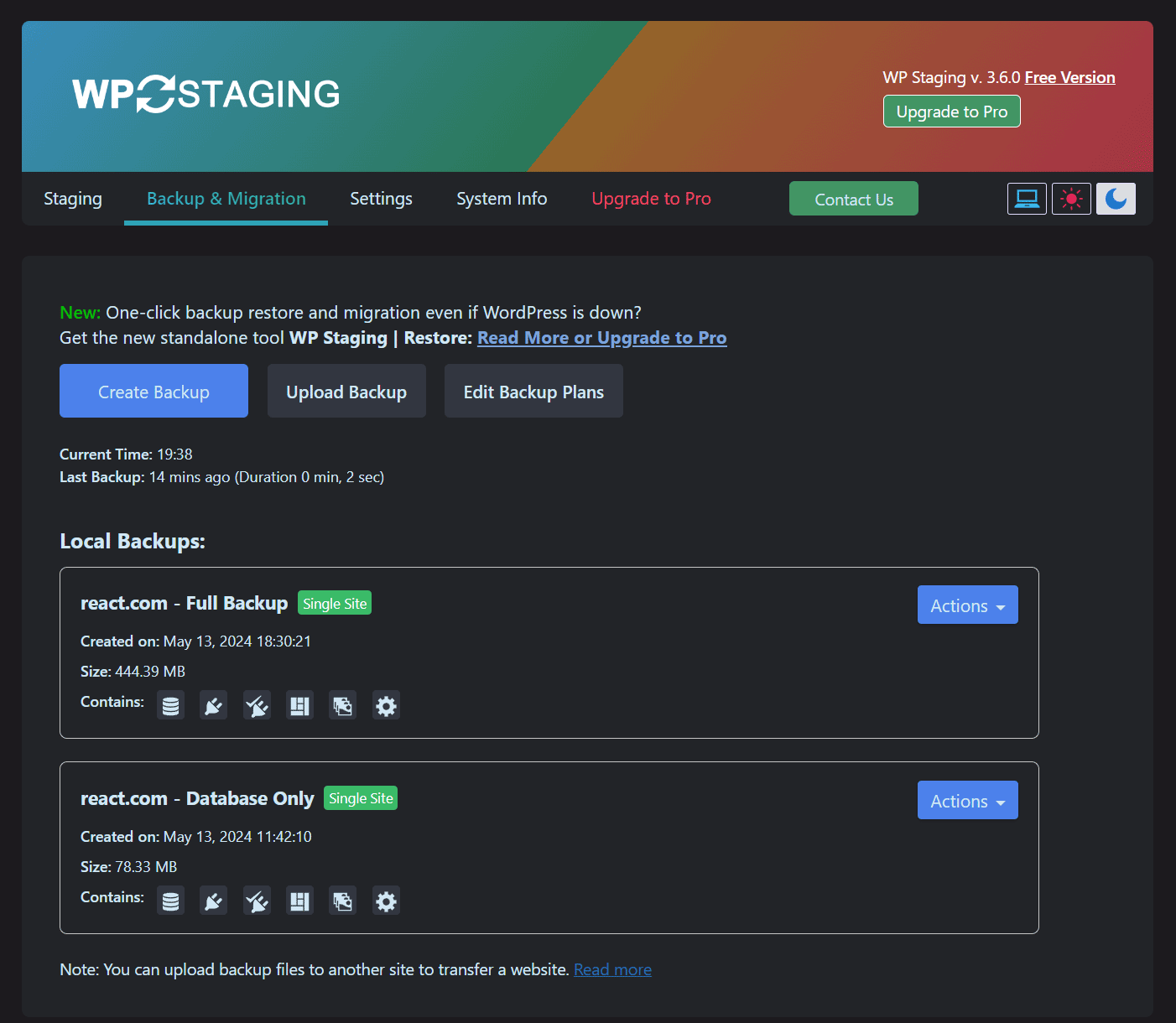
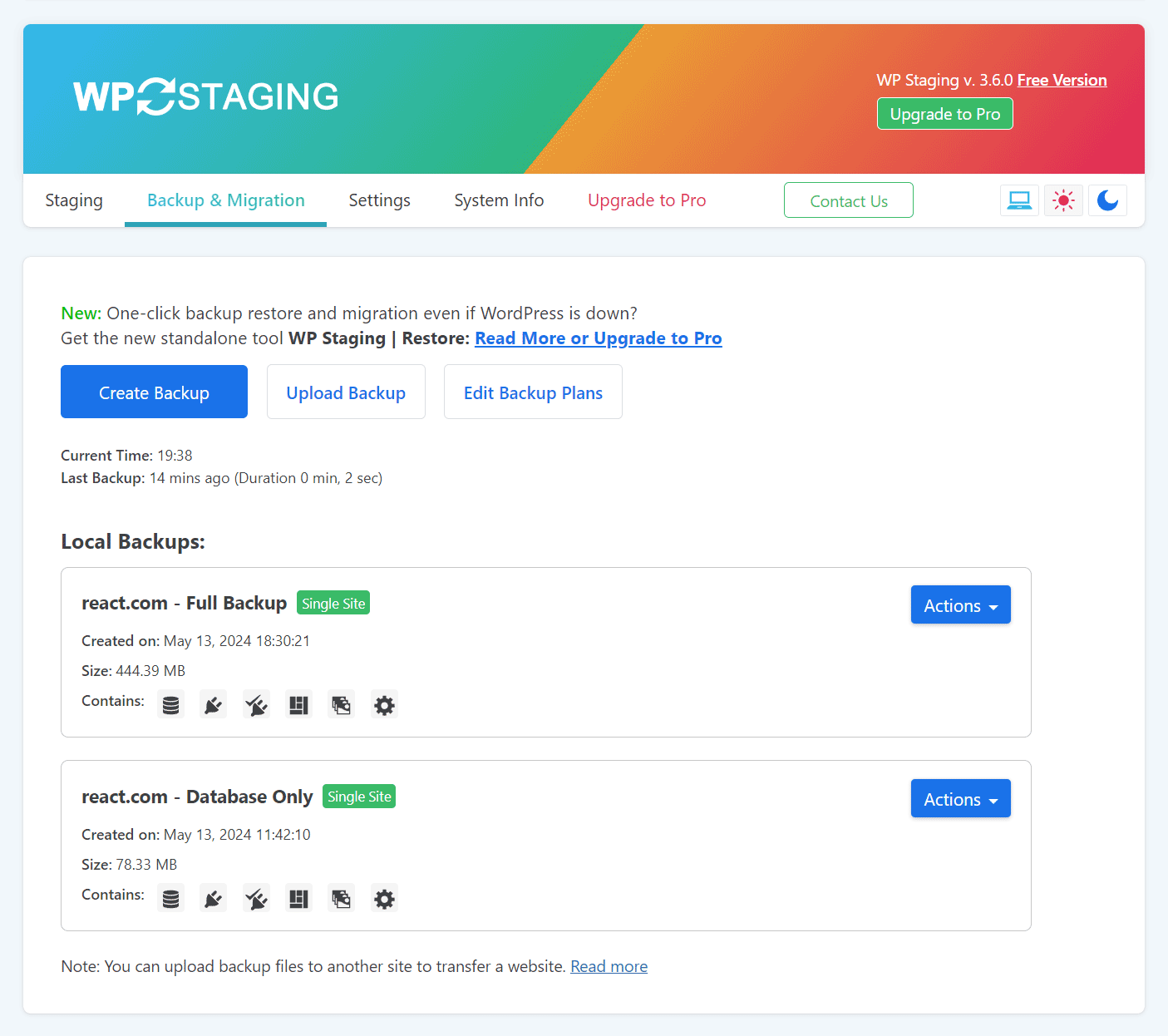
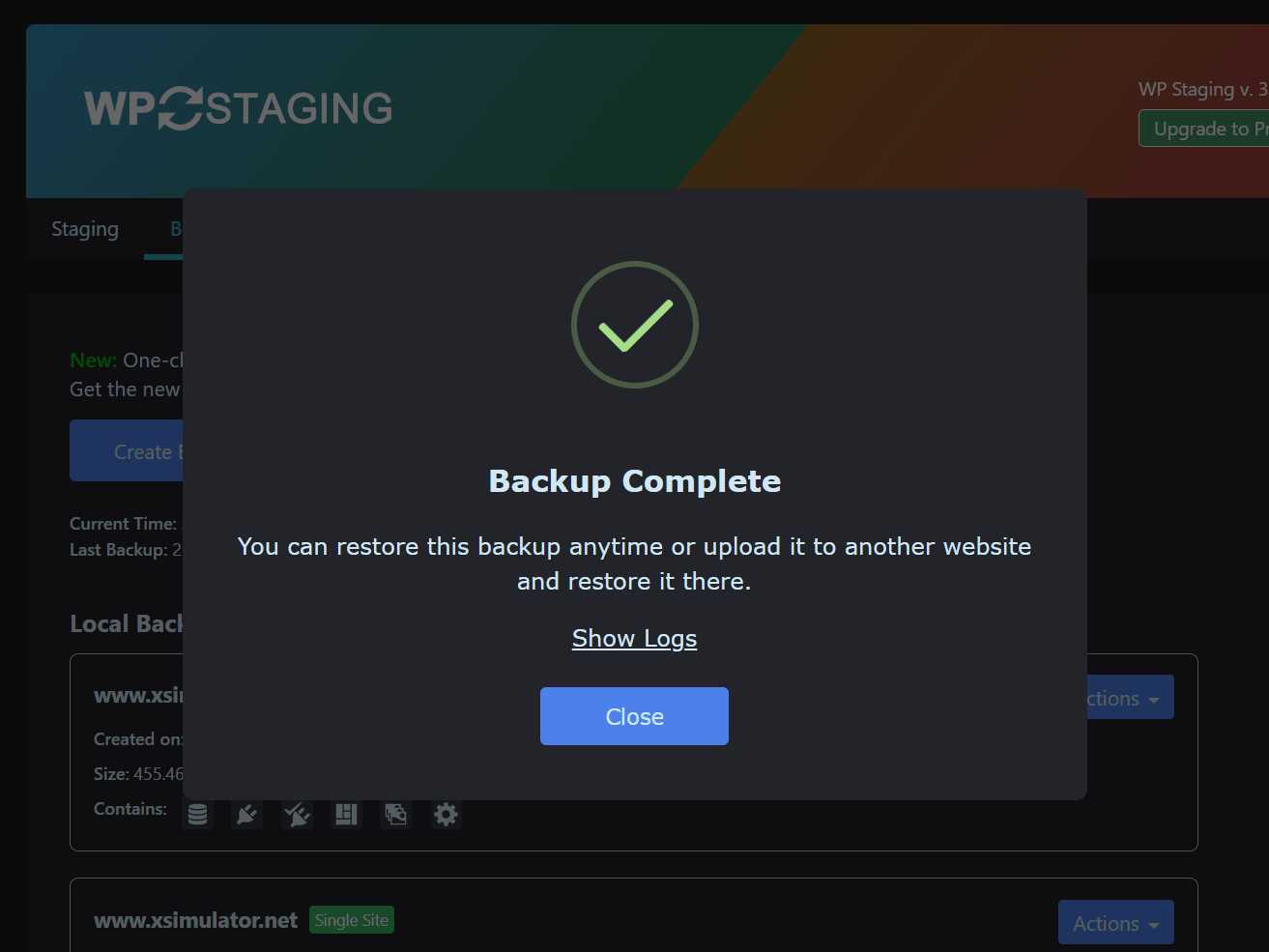
- Create full or partial backups — full-site backup, database-only, or files-only backups.
- Scheduled backups with automatic daily backups.
- Easy to use: create a clone or backup in one click.
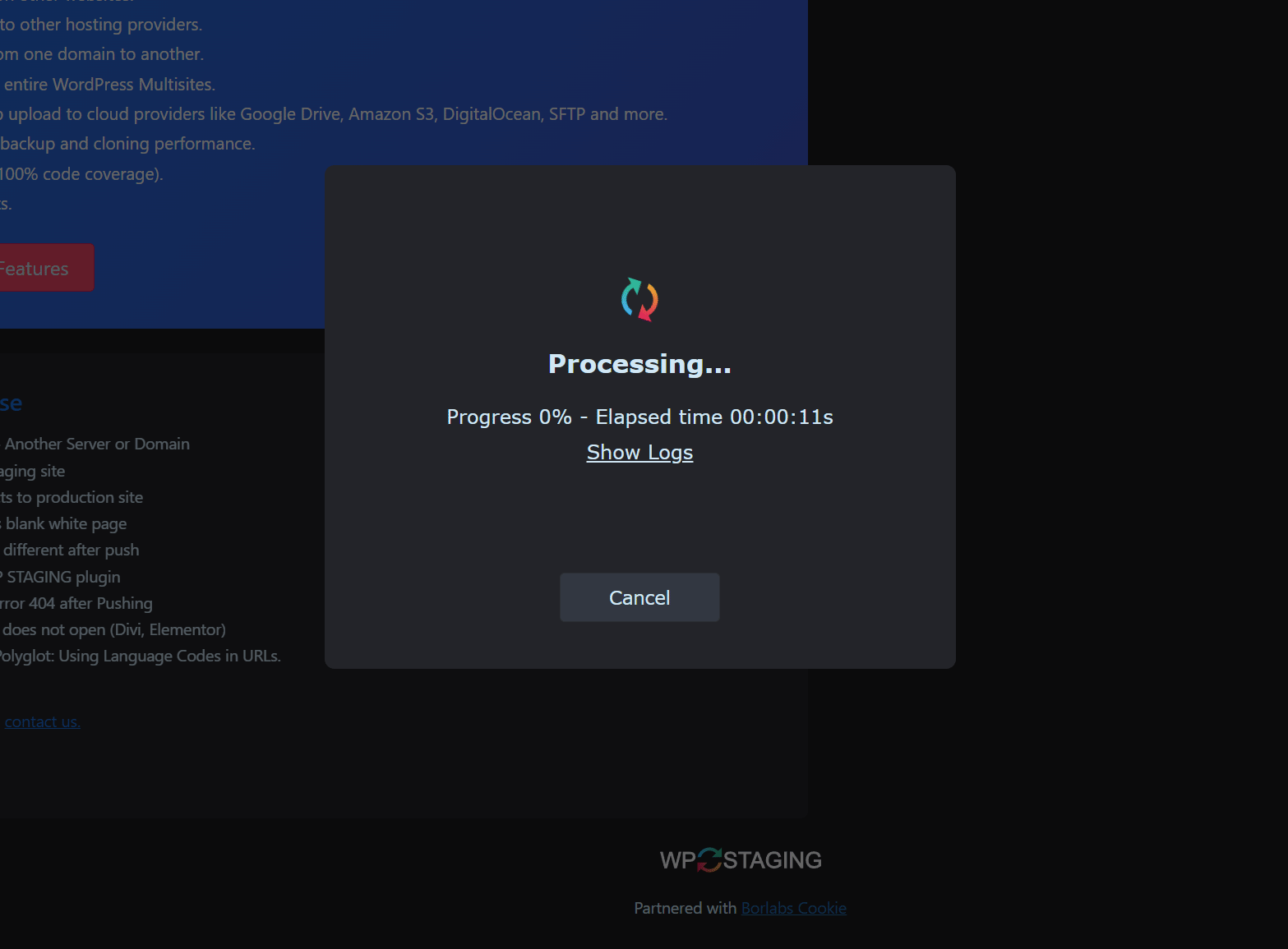
- Efficient background processing without slowing down your website.
- No Software as a Service and no external account required.
- All your data stays on your server. Your data belongs to you only.
- No server timeouts on huge websites or weak servers.
- Fast backup, clone, and restore workflows depending on site size and server resources.
- Use the clone as part of your backup and update strategy.
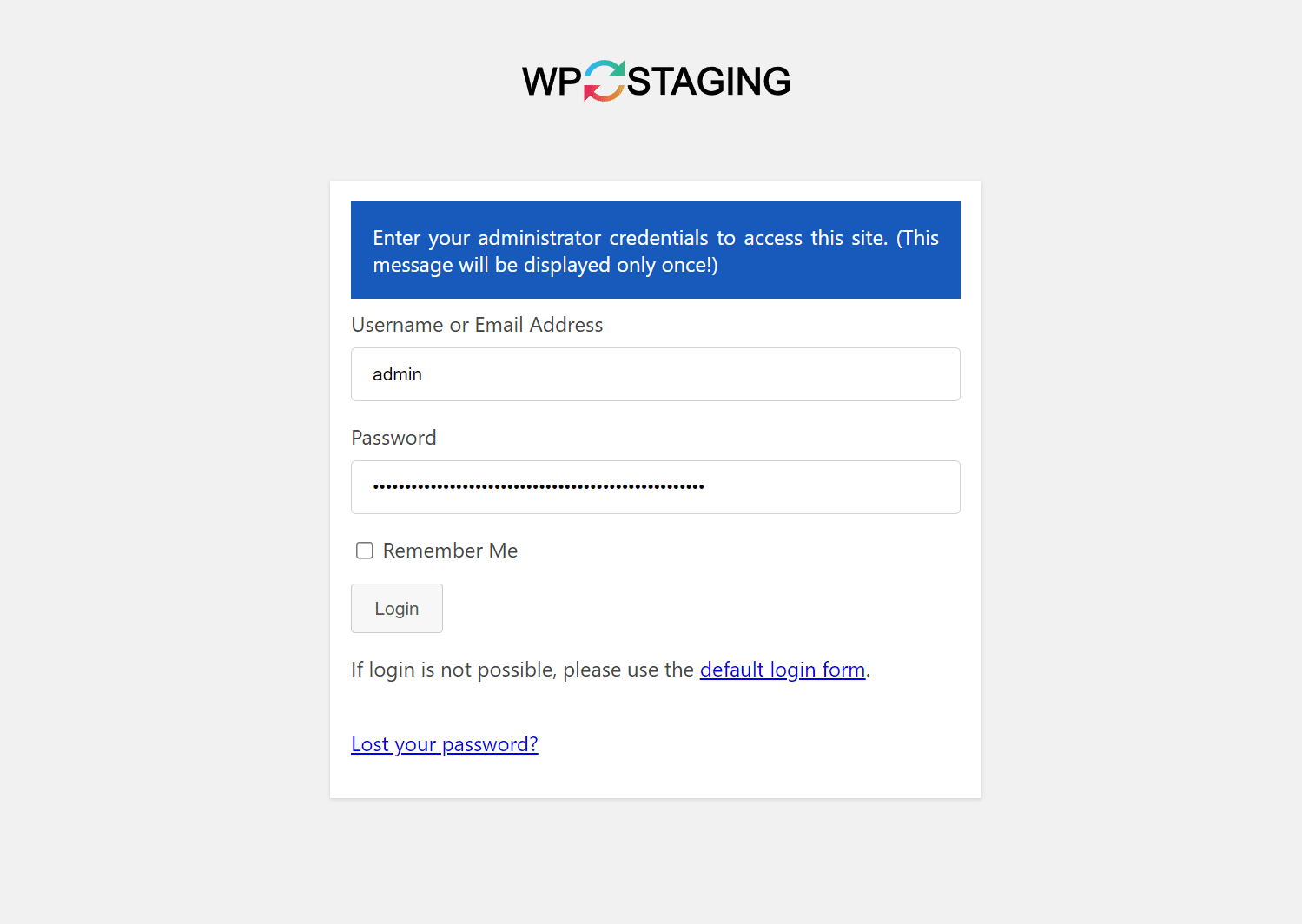
- Only administrators can access the cloned or backup website.
- SEO-friendly staging sites with login protection and no-index handling.
- The admin bar on the staging / backup website is orange colored and shows when you work on the staging site.
- Extensive logging features.
- Supports Apache, Nginx, Microsoft IIS, and LiteSpeed Server.
- Every release passes extensive automated tests to keep the plugin robust, reliable, and fast.
- Fast and professional support team.
WP STAGING | PRO – BACKUP & STAGING FEATURES
The features below are available in WP STAGING | PRO.
- Remote Sync – Pull a WordPress site securely from one server to another.
- WP STAGING CLI – Turn a backup into a local Docker-based development site.
- Migrate and transfer WordPress to another host or domain.
- Push staging changes to production (staging to live), including plugins, themes, and media files, with one click.
- Clone a backup or staging site to a separate database.
- Choose a custom directory for a backup or cloned site.
- Select a custom subdomain destination like dev.example.com.
- Define user roles for accessing the clone or backup site. This can be clients or external developers.
- Multisite support for migration, backup, and cloning.
- Schedule recurring backups by time and interval.
- Download and upload backups to another server for migration and transfer.
- Backup retention settings.
- Custom backup names.
- Email notifications if a backup cannot be created.
- WordPress multisite backup and restore.
- Cloud backup, offsite backup, and remote backups to external storage providers.
- Backup to Google Drive.
- Backup to Amazon S3.
- Backup to (S)FTP.
- Backup to Dropbox.
- Custom backup folder destinations for cloud storage providers.
- Priority support.
DOCUMENTATION
How to Backup and Restore WordPress
Backup and Restore WordPress
Backup & Transfer WordPress Site to Another Host
How to Migrate Your WordPress Site to a New Host
Remote Sync
Pull a WordPress Site from One Server to Another
Local Docker Development with WP STAGING CLI
WP STAGING CLI – Upgrade Now
All Backup Guides
All Backup Guides
Working with Staging Sites
Working with Staging Sites
FAQ for Backup & Cloning
FAQ for Backup & Cloning
Troubleshooting Backup & Cloning
Troubleshooting Backup & Cloning
WP STAGING BACKUP & CLONING TECHNICAL REQUIREMENTS & INFORMATION
- Works on latest version of WordPress
- Minimum Supported WordPress Version 3.8
- Cloning and Backup work on all webhosts
- No extra libraries required
- Backup & cloning supports huge websites
- Custom backup format is much faster and smaller than any tar or zip compression
- Backup & cloning works in low memory & shared hosting environments
SUPPORT
Képernyőmentések

Telepítés
Installation via admin plugin search
- Go to Plugins > Add new. Select „Author” from the dropdown near search input.
- Search for „WP STAGING”. Searching for „WPStaging” in one word works as well.
- Find „WP STAGING – WordPress Backup, Restore & Migration” and click the „Install Now” button.
- Activate the plugin.
- The plugin should be shown below settings menu.
Admin Installer via zip
- Visit the Add New plugin screen and click the „Upload Plugin” button.
- Click the „Browse…” button and select the zip file of our plugin.
- Click „Install Now” button.
- Once uploading is done, activate WP STAGING – WordPress Backup, Restore & Migration.
- The plugin should be shown below the settings menu.
GYIK
-
Why should I use a staging site and backup workflow?
-
Plugin updates, theme changes, and custom code should be tested before they reach your live site. A staging workflow lets you clone your production website, test changes safely, and keep a working backup ready in case something goes wrong. Safe updates and update testing on a staging copy protect your live site from broken releases.
Usually, it is best to run the staging site on an environment as close as possible to the production server. That is the best way to catch compatibility issues before they affect your live site.
WP STAGING combines backup, restore, staging, and migration in one workflow, so you can protect your live website, reduce downtime risk, and ship changes with more confidence.
-
Is WP STAGING a backup plugin?
-
Yes. WP STAGING started as a staging plugin and grew into a complete WordPress backup plugin, with restore, staging, cloning, and migration in one tool.
Even the free version lets you create backups and restore them when needed. WP STAGING | PRO adds more advanced backup workflows, cloud storage destinations, migration tools, and developer-focused features.
-
How is WP STAGING different from other backup plugins?
-
WP STAGING combines backup, restore, staging, cloning, and migration in one workflow. While many backup plugins focus mainly on archive-based backups or simple migration, WP STAGING also helps you create a working staging copy, test updates safely, and restore your site when needed.
Some backup plugins focus mainly on creating backup archives, while WP STAGING also creates working staging copies for safer testing and rollback workflows. This is especially useful when you want production-like validation before pushing changes live.
Some backup plugins may not fully support custom tables in all scenarios. WP STAGING is designed to work reliably with staging workflows and custom table prefixes used by its own cloned environments.
WP STAGING | PRO also includes advanced workflows such as Remote Sync and WP STAGING CLI, which can turn a backup into a local Docker-based development site. That makes WP STAGING especially attractive for developers, agencies, and site owners who want more than a basic backup plugin.
-
How do I back up and restore a WordPress site?
-
After installing WP STAGING, go to the backup section in the plugin and create a full-site backup. You can then restore that backup if a plugin update, theme change, deployment, or unexpected issue breaks your site.
WP STAGING is designed to make backup and restore simple, even on shared hosting and large WordPress installations.
-
What is Remote Sync in WP STAGING Pro?
-
Remote Sync is a Pro feature that lets you pull a WordPress site securely from one server to another using an API key. Instead of manually exporting databases and copying files, you connect the two sites and start the sync from inside WP STAGING.
This is especially useful for agencies, developers, and site owners who want a faster and more reliable workflow for moving content between WordPress installs.
Learn more:
Remote Sync: Pull a WordPress Site from One Server to Another -
How can I turn a backup into a local Docker development site?
-
WP STAGING | PRO includes access to WP STAGING CLI, which can turn a WP STAGING backup into a local Docker-based WordPress site with one command.
This is ideal for debugging, QA, development, and reproducing client issues locally. It helps you create repeatable local environments without building custom Docker setups for every project.
Learn more:
WP STAGING CLI – Upgrade Now -
How do I move, migrate, or transfer a WordPress site to a new host?
-
WP STAGING | PRO includes migration and transfer workflows that help you move a WordPress website to another host, transfer your WordPress site to a new host, change the domain, or move to another server. You can move your website between hosts without manual database exports.
If you want a guided step-by-step walkthrough, see:
How to Migrate Your WordPress Site to a New Host -
How do I duplicate or clone a WordPress site?
-
WP STAGING works as a WordPress duplicator: it can duplicate or clone a WordPress site in a few clicks and create an exact copy of your site for testing, development, or as a safety net. Duplication runs in the background, so you can duplicate even large WordPress sites on shared hosting. If you have used a plugin like Duplicator before, WP STAGING covers the same clone and copy workflows and adds backup, restore, and staging.
-
Is WP STAGING a good Duplicator alternative?
-
Yes. If you are looking for a Duplicator alternative, WP STAGING covers the same use cases: duplicate a WordPress site, create a full-site copy, and move or transfer it to another host. In addition to the duplicator workflow, you get one-click staging sites, scheduled backups, and restore in the same plugin.
-
Why do I need a backup plugin at all?
-
Consistent website backups are the foundation of a robust disaster recovery strategy. They protect your website against failed updates, user mistakes, malware cleanup, hosting issues, hardware failures, software malfunctions, and data loss.
Backups should include website files, databases, user data, and configuration data. A combination of full backups and incremental backups can improve storage efficiency while keeping restore points current.
If your website generates leads, sales, traffic, or customer trust, regular backups are not optional. A reliable backup, restore, and recovery workflow lets you roll back your WordPress site and can save hours of downtime and expensive recovery work.
-
Can I activate permalinks on the staging site?
-
Permalinks are disabled on the staging site after the first cloning process.
Read this guide to activate permalinks on your staging site:
Activate Permalinks on the Staging Site -
I cannot log in to the staging or backup site
-
If you use a security plugin such as Wordfence, iThemes Security, All In One WP Security & Firewall, or a plugin that hides the default WordPress login URL, make sure you are running the latest version of WP STAGING.
If you still cannot log in, go to WP STAGING > Settings and disable WP STAGING extra authentication. Your admin dashboard will still remain protected.
-
Can I just use my local WordPress development system for testing and backup?
-
You can always test your website locally, but if your local hardware and software environment is not an exact clone of your production server, there is no guarantee that every aspect of your local copy will behave the same way.
Differences in PHP version, server stack, memory, CPU performance, and filesystem behavior can all lead to unexpected results on production. That is why staging on infrastructure close to production remains valuable.
WP STAGING | PRO also gives you a more advanced local workflow through WP STAGING CLI, which can turn a backup into a local Docker-based development site.
-
Is WP STAGING available in multiple languages?
-
Yes. WP STAGING is available in multiple languages, and several translations are already complete or nearly complete.
You can view translated plugin pages here:
English
French
German
Spanish
Croatian
Dutch
Finnish
Greek
Hungarian
Indonesian
Italian
Persian
Polish
Portuguese (Brazil)
Russian
Turkish
VietnameseIf you want to help improve translations, please get in touch with us through the support forum.
-
Can I give feedback for WP STAGING?
-
Yes. If something does not work as expected, please open a support request and describe the issue in as much detail as possible.
We continuously improve WP STAGING based on user feedback, real-world hosting environments, and developer use cases.
Open support:
WP STAGING Support Forum
Vélemények


Közreműködők és fejlesztők
“WP STAGING – Backups & Restore, Migration & Clone Plugin – Cloud Backups, Scheduled Backups” egy nyílt forráskódú szoftver. A bővítményhez a következő személyek járultak hozzá:
Közreműködők


“WP STAGING – Backups & Restore, Migration & Clone Plugin – Cloud Backups, Scheduled Backups” 11 nyelvre lett lefordítva. Köszönet a fordítóknak az áldozatos munkájukért!
Érdekeltek vagyunk a fejlesztésben?
Browse the code, check out the SVN repository, or subscribe to the development log by RSS.
Változási napló
4.16.0
- New: Add „Create Blank WP Site” option that installs a fresh WordPress instead of cloning the live site. (Pro) #2959
- New: Add opt-in low disk space mode for Remote Sync pull that creates and transfers the backup in capped parts, so the source site no longer needs free disk space for the whole backup. #5317
- New: Preview and map subsite URLs when cloning and pushing. (Pro) #5898
- Enh: Duplicate an FTP / SFTP storage profile, so a second destination on the same server needs no retyped connection details. (Pro) #6506
- Enh: FTP / SFTP settings move to a new place on update, so going back to an older version needs them entered again. #5946
- Enh: Keep FTP / SFTP destinations out of staging sites, so production credentials are not copied to a clone. #5946
- Enh: Load remote storage code only for WP STAGING requests. (Pro) #3879
- Enh: Refuse to save an FTP / SFTP profile into a folder another profile already uses on the same server. (Pro) #6506
- Enh: Support multiple independent FTP / SFTP storage profiles per site. #5946
- Fix: Backups no longer fail their own integrity check when their size lands just below a power of ten. #6480
- Fix: Cancelling a backup started from the first-run screen now closes the progress window and offers the choice again, instead of leaving the window open and failing on a second attempt. #6406
- Fix: Delete every wpstg_staging_sites_backup_ option when the plugin is uninstalled. #6185
- Fix: Delete the backups a plan no longer keeps once the new one exists, so a plan that keeps a single backup is never left without one. #6359
- Fix: Delete the temporary copy of the staging site’s storage credentials when an update cannot restore it, and on uninstall. #6263
- Fix: Exclude the background-processing queue table from staging site clones. #6362
- Fix: Expect the storage profile AJAX callbacks in the storage service provider test, so master’s unit tests pass again. #6550
- Fix: Give the backup a plan makes with Create backup now the plan’s schedule id, so the plan counts that backup toward the number of backups it keeps, rotates it away in its turn, and reports it as its last run. #6462
- Fix: Honour WP-CLI options written with a leading double dash and report unknown ones. #6413
- Fix: Keep rebuilding the backup cron events when one backup plan’s schedule id is not a string. #6370
- Fix: Keep the „Cancelling & Cleaning up” modal after cancelling a backup restore instead of reporting the job as cancelled from another page. #6620
- Fix: Keep the Next-Gen transfer method selected after a push. (Pro) #6527
- Fix: Make WP-CLI staging-site-create honour its database and other advanced options. (Pro) #6257
- Fix: Name the missing automatic login endpoint instead of blaming a firewall when the staging site runs WP STAGING Free. #6222
- Fix: Prevent duplicated domain suffixes and preserve escaped page-builder URLs when restoring backups. (Pro) #3439
- Fix: Protect updates clicked before the page finishes loading. #6337
- Fix: Record the actual reason a Remote Sync authentication failed instead of one generic message. #5505
- Fix: Reduce temporary files created during backups. #2037
- Fix: Refuse cloning to a target directory PHP cannot read instead of failing with a fatal error. #6494
- Fix: Refuse creating a staging site when its destination table prefix is already in use. #6220
- Fix: Refuse to back up a subsite in the WP-CLI backup-create command when it is archived, suspended or deleted, or belongs to another network. #6384
- Fix: Regenerate Elementor CSS after restoring a backup or syncing a database with Remote Sync. #6251
- Fix: Report a cancellation that cannot finish instead of asking the server about it for ever. #6422
- Fix: Say which task could not be built instead of blaming disk space, and keep the object that came back out of the error report. #6277
- Fix: Select custom folders under wp-content by default when pushing, so a push no longer leaves them behind without saying so. #6157
- Fix: Show actionable guidance for Error 429 during backup uploads. #1162
- Fix: Show only one label at a time on the backup „Contains” icons, instead of leaving several overlapping. #5381
- Fix: Stop a cancelled backup, staging site or push from logging the request the cancel aborted to the browser console, and report an error a finished job runs into while it closes down instead of swallowing it. #6007
- Fix: Stop an interrupted clone from leaving a live WordPress in the staging folder wired to the production database. #6145
- Fix: Stop an unchanged save of a backup plan from restarting the point its runs are counted from, so a missed backup stays reported. (Pro) #6409
- Fix: Stop counting failed Remote Sync authentications as sync attempts in usage analytics. #5505
- Fix: Stop reporting a backup restore as failed when its status check fails right after pressing Cancel. #6620
- Fix: Stop the WP-CLI backup-create command from backing up a different subsite than the one subsite_blog_id names. #6384
- Fix: The Create Backup modal no longer opens by itself on the backup page of a site that stopped running WP Staging Pro. #6613
- Fix: The Upload Backup to Cloud and Create Backup modals no longer reopen by themselves after saving cloud storage settings that did not leave the page. (Pro) #6613
- UX: Show „Always on” in the staging summary for isolation controls that only Pro can turn off. #5987
- Tweak: Create a full-site backup before pushing to production. (Pro) #5240
- Tweak: Explain why uninstall keeps staging sites and backups. #6155
- Dev: Align AGENTS.md with the house rules in CLAUDE.md, so Copilot and Codex follow the same changelog, test, comment and code style rules. #6510
- Dev: Align the code-style guide and the test docs with CLAUDE.md. #6515
- Dev: Apply the blocked label from the lifecycle controller in place of fast-tests-failed and fast-tests-cancelled. #6592
- Dev: Apply the review-role labels from the lifecycle controller and take an unsupported ready-to-merge off. #6601
- Dev: Ask Copilot for its review from the lifecycle controller when nobody did. #6644
- Dev: Ask for the kind and the reproduction in the pull request template, so a pull request filled in by hand can satisfy the merge-readiness status. #6560
- Dev: Ask the author for the missing Follow-up owed line, not another fix, when every open review finding is already reported fixed and waits on the reviewer. #6591
- Dev: Ask the reviewer a second approval waits for to review the head, and name them in the merge-readiness status. #6614
- Dev: Bring the process docs and diagrams in line with the lifecycle controller. #6678
- Dev: Build WP Staging Free during make reset when dist/wp-staging holds no complete build, so WP Staging Pro can activate it on the dev sites. #6103
- Dev: Build the JavaScript the fast-test browser fixture serves, so a Playwright run cannot silently test a stale bundle. #6457
- Dev: Cap a review at 25 lines and name the defect in each finding title. #6594
- Dev: Check each open pull request’s labels against its reviews, checks and holds, and report where they disagree, without writing any. #6525
- Dev: Check every SCSS file with Prettier, not only those one folder deep. #6509
- Dev: Check the translation template on every push to master, so a stale template is reported against the merge that introduced it instead of being discovered in an unrelated pull request. #6312
- Dev: Claim a GitHub issue before starting on it, and take several off the backlog with one command. #6394
- Dev: Continue HIGH PRIORITY reviews into fixing verified blockers. #6448
- Dev: Correct fast-test label and WordPress 7.0 RC documentation. #6537
- Dev: Count the project owner’s skip-tests in the lifecycle controller, so merge-readiness can pass on a pull request merged without a test run. #6576
- Dev: Credit a fast-tests status only when GitHub Actions posted it. #6606
- Dev: Delete CI artifacts that a newer run or a closed pull request made obsolete, and keep the E2E packages for three days instead of fourteen. #6634
- Dev: Describe the pull request workflow in plain words with its diagrams, count the E2E rounds the controller dispatches, and let the author verify every review fix and feature. #6622
- Dev: Fail loudly when the Free fixture switch cannot read a version or a worktree E2E run skips every test, and restore the edition when a run is interrupted. #6392
- Dev: Generate the translation template without committing it in PRs. #6481
- Dev: Keep AGENTS.md and CLAUDE.md from contradicting each other. #6562
- Dev: Keep Playwright traces only for failed tests, which shrinks the report a failed E2E suite uploads. #6638
- Dev: Keep a review finding open when the author asks the wrong reviewer back for it. #6589
- Dev: Keep a review round whose holders already read the head, and read re-review signatures and bare approvals as follow-ups. #6646
- Dev: Keep a role review counting when the round moves to a new commit before the other review is in. #6669
- Dev: Label unit-test results as unit-baseline-passed and unit-full-matrix-passed, the names the lifecycle controller reads, instead of the fast-tests-passed family. #6574
- Dev: Let a reviewer hold a review role on request without joining the assignment rotation. #6615
- Dev: Let the author close a role-review finding that carries no Verify line, as review-procedure § 10 says, instead of holding it for a reviewer follow-up. #6587
- Dev: Let the author close every finding the hand-back reports fixed or dismisses, and never wait on a follow-up the PR asked for. #6653
- Dev: Let the author verify most review fixes and owe a follow-up only to the reviewer who raised the finding. #6533
- Dev: Let the project owner’s skip-reviews label lift the review roles, and have the lifecycle controller apply ready-to-merge to routine work once every gate passes. #6568
- Dev: Limit review findings to blockers and performance or UX gains. #6536
- Dev: List Pro-only changes in their own section of the wordpress.org release notes instead of dropping them. #6510
- Dev: Merge the labels that meant the same thing and name each one once in the skills, the controller and its policy. #6572
- Dev: Move the release procedure from the project slash command into .agents/skills, so every agent working in this repository can read and follow it. #6464
- Dev: Publish the lifecycle controller’s merge-readiness verdict as an advisory commit status on each open pull request’s head. #6548
- Dev: Queue the lifecycle controller’s runs instead of cancelling them, and keep merge-readiness from waiting on GitHub’s own blocked or unknown merge state. #6554
- Dev: Rebuild the stale Pro build before make tests_e2e serves it after a PHP edit. #6490
- Dev: Record a human verification of a feature on its head, and report the merge-eligibility and merge-readiness results it gates, without writing any. #6534
- Dev: Remove dead Selenium leftovers from the test tooling and repair make targets that cannot run. #6521
- Dev: Remove the inactive Kanban workflow and retire the unused in-progress label. #6604
- Dev: Remove the staging site the missing login endpoint E2E test left in the site root, which grew the full-site backup before push past the backup explorer’s memory limit. #6659
- Dev: Require every fix pull request to record whether it is a regression, what introduced it and which release shipped it. #6451
- Dev: Require the human verification of a feature to cover its whole workflow, and keep agents from recording it. #6610
- Dev: Rewrite the Copilot instructions as review rules, with path-specific rules and a code-review skill. #6502
- Dev: Rewrite the developer docs that still described the removed Selenium browser suite. #6516
- Dev: Run Fast tests on pull requests again by keeping the job results out of the size-limited verdict script expression. #6585
- Dev: Run the Flywheel and WordPress.com E2E suites nightly instead of on every Pro round. #6458
- Dev: Run the full PHP matrix once per pull request head: every push tests PHP 7.4 and 8.3, and the fast-tests label adds only the versions that head has not passed yet. #6520
- Dev: Run the lifecycle controller on runners of its own, so it never queues behind the tests. #6668
- Dev: Run the lifecycle controller’s job on the self-hosted xsimulator fleet instead of a paid Blacksmith runner. #6563
- Dev: Say in the review procedure that make tests_web and make tests_e2e rebuild a stale Pro build by themselves. #6485
- Dev: Set GitHub’s review state when a signed role review is posted. #6674
- Dev: Skip TickLockTest’s exclusivity checks where flock is not exclusive, such as the macOS Docker bind mount. #6523
- Dev: Spend the full fast-tests matrix only after a pull request has been reviewed. #6485
- Dev: Split pull request reviews into a correctness role and a workflow role, each held by its own assigned developer. #6485
- Dev: Start the owed E2E round from the lifecycle controller instead of waiting for a trigger label. #6596
- Dev: Stop a second WordPress version from cancelling an E2E workflow run dispatched on the same branch and PHP version. #6511
- Dev: Stop counting a review, hand-back or decision somebody other than its author edited. #6609
- Dev: Stop guardrail checks failing at random when grep -q closes the pipe early. #6651
- Dev: Stop reviews from reporting agent credits in commits and PR descriptions as blocking findings. #6647
- Dev: Stop running CI jobs a documentation-only pull request cannot affect. #6566
- Dev: Stop the skills from prescribing git commands the permission rules deny. #6546
- Dev: Stop the staging delete test from racing the modal backdrop. #6097
- Dev: Switch off the lifecycle controller’s Copilot request, which the workflow token cannot make. #6670
- Dev: Take changes-required off from the lifecycle controller once every blocking finding is settled. #6645
- Dev: Tell the release skill to reproduce a failed test locally before dispatching a CI shard. #6121
WP STAGING Backup & Cloning | Full changelog:
https://wp-staging.com/wp-staging-changelog